
Montgomery County State’s Attorney’s Office
eDiscovery Audio & Video Player Manual for Defense Attorneys

For assistance, please contact the eDiscovery System Administrator
(240) 777-7305
Montgomery County State’s Attorney’s Office Judicial Center
50 Maryland Avenue Rockville, Maryland 20850
Copyright ©2014, Montgomery County State’s Attorney’s Office. All Rights Reserved. For use with Montgomery County State’s Attorney’s Office eDiscoverCOPYRIGHT NOTICE
Copyright © 2014 Montgomery County State’s Attorney’s Office. All Rights Reserved.New Dawn Technologies, Inc.
Copyright © 2014 New Dawn Technologies, Inc.
JusticeWeb E-Discovery© 2014 new Dawn Technologies, Inc.
All rights reserved. Licensed software and documentation. Use, copy and disclosure restricted by license agreement.
TRADEMARKS
- JustWare™ is a trademark of New Dawn Technologies, Inc., Logan, Utah.
- Microsoft Word®, Microsoft SQL Server®, and Microsoft Exchange® are registered trademarks of Microsoft Corporation
- Other trademarks are the property of their respective owners.
DISCLAIMER
Every effort has been made to ensure the accuracy of the information presented in this document at the time of publication. However, the Montgomery County State’s Attorney’s Office and New Dawn Technologies accepts no responsibility, and offers no warranty whether expressed or implied, for actions taken when referring to this publication. The Montgomery County State’s Attorney’s Office and New Dawn Technologies shall not be liable for information that has changed since publication or for incidental or consequential damages concerning the furnishing, performance or use of this document. The information in this document is subject to change without notice
No part of this publication may be reproduced, stored in a retrieval system, or transmitted, in any form or by any means, electronic, mechanical, recording, or otherwise, without the express written permission of the Montgomery County State’s Attorney’s Office and New Dawn Technologies.
Table of Content
eDiscovery Introduction
Montgomery County Maryland State’s Attorney’s Office (SAO) has implemented a new online Discovery Material Delivery portal for Defense Attorneys of Record to download electronic Discovery Material.
This portal is integrated with New Dawn Technologies JustWare Prosecutor case management system which SAO Staff is currently working with. These two components are collectively called the SAO eDiscovery System.
This manual is to assist you with the managing of Audio & Video files that are downloaded though this portal
2 Working with Panasonic Arbitrator 3600 Video Files
Some examples of agencies that use Panasonic video systems are: Montgomery County Police, Takoma Park Police and Gaithersburg City Police. Panasonic video file names all end with file extension .av.
MP2 Viewer Playing Instructions for room interviews
These are the instructions on how to use the mp2 viewer. This player makes viewing the VLC media player files easier to watch and strings them together into one long stream of video instead of short approximate 30 minute segments.
1 Working with Audio Files
In general, most audio files are playable through your computer’s installed programs.
These files are MP3 or WMP file types.
Other audio files will be provided with players or links to download the proper player.
Example 1 – Windows Based Computers
An MP3 file has been downloaded and saved on your computer’s hard drive.
If your computer has Windows Media Player already installed:
- Double Click on the MP3 file
- Windows Media Player plays the file
Example 2 – Apple Computers
An MP3 file has been downloaded and saved on your computer’s hard drive.
If your computer has iTunes or another audio program already installed:
- Click on the MP3 file
- iTunes plays the file
1)Click this link to reach the following Google Drive Website: Panasonic Arbitrator.
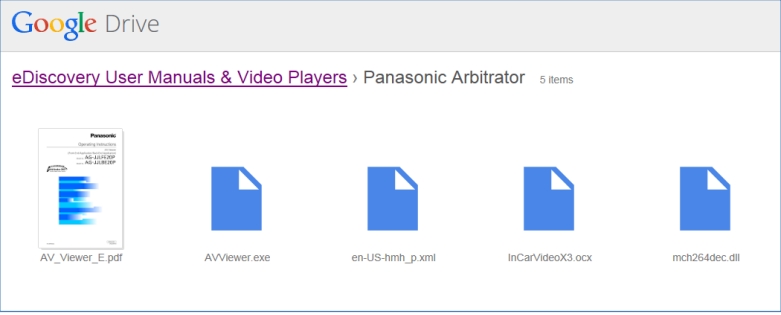
2)You must download each file individually into a new folder on your computer’s hard drive
- A) Click on AVViewer.exe which is one of the files to download.
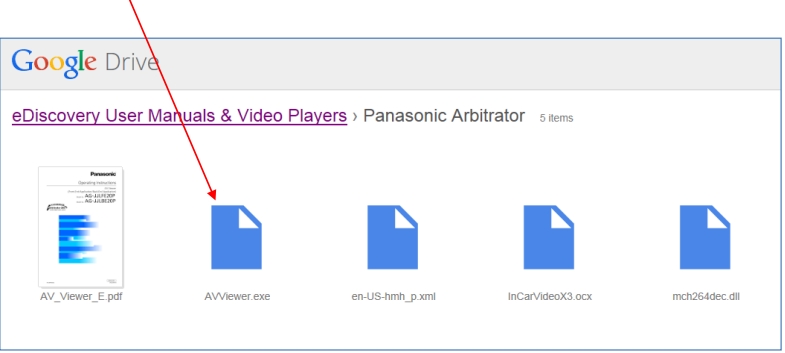
- B) Depending on your browser, download the file. You may see any of the following:
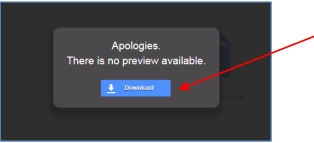
And, or click on Save dropdown and Save As, to your new folder:

- 3.Repeat Steps 2a and 2b for all of the remaining files.
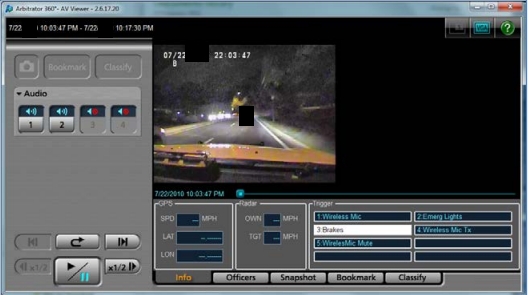
- 4.After your Discovery video file has been downloaded from the SAO eDiscovery Portal, open the Panasonic folder on your computer and double click the AVViewer.exe to run the program. It will prompt you to search for your video file that was downloaded. Once you supply the file, it will be viewable in the player.
3) An example of an agency that uses ICOP video systems is: Rockville City Police. ICOP video file names all end with file extension .DAV.
- 1. Click this link to reach the following Google Drive Website: ICOP

- 2. You must download each file individually into a new folder on your computer’s hard drive
- a. Click on autorun.inf which is one of the files to download

- b. Depending on your browser, download the file. You may see any of the following:

- And, or click on Save dropdown and Save As, to your new folder:

- 3. Repeat Steps 2a and 2b for all of the remaining files.
- 4. ICOP player files and the associated .DAV video file MUST be in the same folder as the player files in order to view the discovery video.
- 5. After your discover video file has been downloaded from the SAO eDiscovery Portal, open the ICOP folder on your computer and double click the Player.exe to run the program. It will prompt you to search for your video file that was downloaded. Once you supply the file, it will be viewable in the player.

4)In general most Kustom Signals’ video files are playable through your computer’s installed programs.
These files are standard DVD formatted files. These files can be played directly from your computer’s hard drive through pre-installed DVD media players
Example 1 – Windows Based Computers
- The following files have been downloaded and saved on your computer’s hard drive.
- These files must be in the same folder on your computer’s hard drive.
- .VOB
- .IFO
- .BUP
- If your computer has Windows Media Player already installed:
- Double Click on the VOB file
- Windows Media Player plays the file
Example 2 – Apple Computers
- The following files have been downloaded and saved on your computer’s hard drive.
- These files must be in the same folder on your computer’s hard drive.
- .VOB
- .IFO
- .BUP
- If your computer has QuickTime or a DVD view already installed:
- Double Click on the VOB file
- QuickTime or a DVD player plays the file

For assistance, please contact the eDiscovery System Administrator
- (240) 777-7305
Montgomery County State’s Attorney’s Office
- Judicial Center 50 Maryland Avenue Rockville, Maryland 2085